
 Hyundai Azera: Remote keyless entry system operations
Fifth generation HG (2011–2026) / Hyundai Azera 2011-2026 Owners Manual / Features of your vehicle / Smart key / Remote keyless entry system operations
Hyundai Azera: Remote keyless entry system operations
Fifth generation HG (2011–2026) / Hyundai Azera 2011-2026 Owners Manual / Features of your vehicle / Smart key / Remote keyless entry system operations
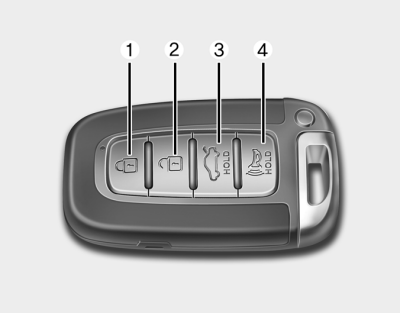
Lock (1)
1. Carry the smart key.
2. Close all doors, engine hood and trunk.
3. Press the lock button(1).
4. All doors and trunk will lock. The hazard warning lights will blink and the chime
will sound once.
5. Make sure that doors are locked by checking the door lock button inside or pulling
the outside door handle.
If any door, trunk or engine hood remains open, the hazard warning lights will not operate. If all doors, trunk and engine hood are closed after the lock button is pressed, the hazard warning lights will blink once.
You can activate or deactivate the Lock Sound (chime sound) function in the vehicle. Refer to "User Settings" in this section.
Unlock (2)
1. Press the unlock button(2).
2. The driver’s door will unlock. The hazard warning lights will blink and the chime
will sound twice.
3. Press the unlock button(2) once more within 4 seconds.
4. All doors and trunk will unlock.The hazard warning lights will blink and the
chime will sound twice.
You can activate or deactivate the Two Turn Unlock and Unlock Sound (chime sound) function in the vehicle. Refer to "User Settings" in this section.
✽ NOTICE
- The button will only operate when the smart key is within 28~40 in. (0.7~1 m) from the outside door handle.
- After unlocking the driver’s door or all doors, the door(s) will lock automatically unless a door is opened.
Trunk open (3)
1.Press the trunk open button(3) for more than 1 second.
2.The trunk will open. The hazard warning light will blink twice to indicate the
trunk is opened.
✽ NOTICE
- Once the trunk is opened and closed, the trunk will lock automatically when all doors are locked.
- The switch/button will only operate when the smart key is within 28~40 in. (0.7~1m) from the trunk handle.
Alarm (4)
1. Press the alarm button(4) for more than 1 second.
2. The horn sounds and hazard warning light flashes for about 30 seconds.
To stop the horn and lights, press any button on the smart key.
 Smart key functions
1. Door lock
2. Door unlock
3. Trunk open
4. Alarm
With a smart key, you can lock or unlock a door (and trunk) and even start the
engine without inserting the key. Refer to the following, for mor ...
 Smart key precautions
If you lose your smart key, you will not be able to start the engine. Tow
the vehicle, if necessary, and contact an authorized HYUNDAI dealer.
A maximum of 2 smart keys can be registered to a s ...
See also:
Vehicle break-in process
No special break-in period is needed. By following a few simple precautions for
the first 600 miles (1,000 km) you may add to the performance, economy and life
of your vehicle.
Do not race the e ...
Description and Operation
Description
Communication network diagram
AbbreviationExplanationC_CANChassis Controller Area NetworkB_CANBody Controller Area NetworkMM_CANMulti media Controller Area NetworkSMKSmart Key ECUDDM ...
Basic Mode Screen
(1) Mode Display Displays currently operating mode.
(2) Channel Information Displays the category, channel number, channel
name, artist and song title.
(3) Preset Displays currently playing pre ...
Categories
Hyundai Azera Manuals
