
 Hyundai Azera: Description and Operation
Fifth generation HG (2011–2026) / Hyundai Azera 2011-2026 Service Manual / Body Electrical System / Hands Free System / Description and Operation
Hyundai Azera: Description and Operation
Fifth generation HG (2011–2026) / Hyundai Azera 2011-2026 Service Manual / Body Electrical System / Hands Free System / Description and Operation
Fifth generation HG (2011–2026) / Hyundai Azera 2011-2026 Service Manual / Body Electrical System / Hands Free System / Description and Operation
| Function |
| Audio Bluetooth System |
General Features
| • |
This audio system supports Bluetooth® hands-free and stereo-headset features. |
| - |
HANDS-FREE feature : Making or receiving calls wirelessly. |
| - |
STEREO-HEADSET feature : Playing music from cellular phones (that supports A2DP feature) wirelessly. |
|

Phone Setup
All Bluetooth®-related operations can be performed in PHONE menu.
| 1. |
Push the "SETUP" button to enter SETUP mode.
|
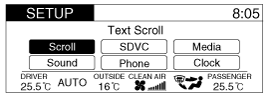
| 2. |
Select “PHONE� item by using  , ,  button, then push the "OK" button. button, then push the "OK" button.
|
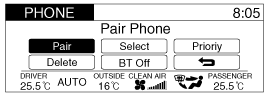
| 3. |
Select desired item by using , button, then push the "OK" button. |
| • |
Pairing a phone
Before using Bluetooth® features, the phone must be paired
(registered) with the audio system. Up to 5 phones can be paired with
the system.
|
| 1. |
Press "SETUP" button to enter SETUP mode. |
| 2. |
Select “Phone�, then “Pair� in PHONE menu. |
| 3. |
The audio displays “searching ---- passkey : 0000� |
| 4. |
Search the Bluetooth® system on your phone. Your phone
should display your [vehicle model name] on the Bluetooth® device
list.Then attempt pairing on your phone.
|
| • |
Connecting a phone
When the Bluetooth® system is enabled, the phone previously
used is automatically selected and re-connected. If you want to select
different phone previously paired, the phone can be selected through
“Select Phone� menu.
Only a selected phone can be used with the hands-free system at a time. |
| 1. |
Press "SETUP" button to enter SETUP mode. |
| 2. |
Select “Phone�, then “Select� in PHONE menu. |
| 3. |
Select desired phone name from the list shown. |
| • |
Deleting a Phone
The paired phone can be deleted. |
| - |
When the phone is deleted, all the information associated with that phone is also deleted (including phonebook). |
| - |
If you want to use the deleted phone with the audio system again, pairing procedure must be completed once more. |
| 1. |
Press "SETUP" button to enter SETUP mode. |
| 2. |
Select “Phone�, then “Delete� in PHONE menu. |
| 3. |
Select desired phone name from the list shown. |
| • |
Changing Priority
If several phones are paired with the audio system, the
system attempts to connect following order when the Bluetooth® system
is enabled:
1) “Priority� checked phone.
2) Previously connected phone
3) Gives up auto connection. |
| 1. |
Press "SETUP" button to enter SETUP mode. |
| 2. |
Select “Phone�, then “Priority� in PHONE menu. |
| 3. |
Select desired phone name from the list shown. |
| • |
Turning Bluetooth® ON/OFF
Bluetooth® system can be enabled (ON) or disabled (OFF) by this menu. |
| - |
If Bluetooth® is disabled, all the commands related to
Bluetooth® system prompts whether you wish to turn Bluetooth® ON or
not. |
| 1. |
Press "SETUP" button to enter SETUP mode. |
| 2. |
Select “Phone�, then “BT Off� in PHONE menu. |
 Components and Components Location
Components
1. Hands free call switch2. Mic3. Front left speaker4. Front right speaker5. Audio head unit (hands free control)
? There is no hands free jack. This system supports Bluetooth(wir ...
 Hands Free Switch Schematic Diagrams
Circuit Diagram
...
See also:
Camshaft Position Sensor (CMPS) Schematic Diagrams
Circuit Diagram
...
35R Clutch Control Solenoid Valve(35R/C_VFS) Repair procedures
Inspection
1.
Turn ignition switch OFF.
2.
Disconnect the solenoid valve connector.
3.
Measure resistance between sensor signal terminal and sensor ground terminal.
4.
Check that the ...
Components and Components Location
Component Location
1. Slide motor2. Front height motor3. Rear height motor4. Lumbar support motor5. Recline motor6. Cushion extension motor7. Lumbar support switch
...
Categories
Hyundai Azera Manuals

© 2011-2026 Copyright www.hgmanual.com